


Themes Box: Icons & Widgets
4.357.00 Reviews
App Specs
- Version
- 1.1.3
- Updated On
- License
- Free
- Downloads
- 1,000,000+
- Developer
- EZProducts
- Categories
- Personalization
- Platform
- Android
Screenshots

 Analysis by AppCompare
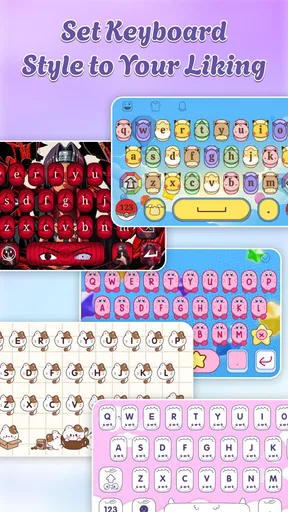
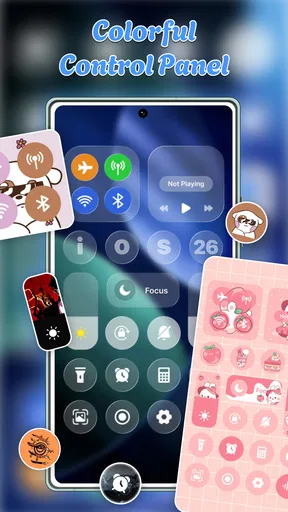
I usually reach for a customization app when my home screen has become a jumble of old shortcuts and default visuals, not because I want to rebuild the whole phone. Themes Box: Icons & Widgets is aimed at that kind of refresh: it brings visual changes such as icons, wallpapers and keyboards into a personalization app from EZProducts. The appeal is the chance to shape a phone’s look in one place, though the best results still depend on how much setup you are willing to do.
Where a quick makeover can get complicated
The first decision is not which design looks nicest; it is how much of your existing layout you want to change. Replacing an icon or wallpaper is a small adjustment, while a coordinated look across a home screen can involve several choices and a little patience. I’d start with one theme element at a time, so it is easier to see what has changed and to undo a choice that does not suit the way you use your phone.
It also helps to treat the previews as inspiration rather than a promise that every element will behave identically on every device. Android launchers and system versions can handle home-screen customization differently. If an icon does not apply as expected, that does not automatically mean the artwork is faulty; the launcher’s icon support may be the deciding factor. Checking the phone’s current home-screen setup before committing to a full redesign can save needless frustration.
A sensible setup before changing everything
I’d take a quick snapshot of the current home-screen arrangement before experimenting: note the pages you rely on, the placement of essential shortcuts and any folders that keep daily tasks within reach. That makes it easier to restore a familiar layout if a new style looks good but proves awkward in use. It is a particularly useful precaution for someone who depends on a consistent arrangement for work, travel or accessibility.
For a cleaner result, choose a small color direction first, then select icons and wallpaper that work with it. A busy background can make labels and widgets harder to scan, while highly decorative icons may be less distinct at a glance. I find that prioritizing readability over a perfectly matched grid usually makes a home screen more pleasant after the novelty wears off.
Recovering when an application does not stick
If a change seems missing, I would check the obvious layers in order rather than reinstalling anything immediately. Confirm that the phone is displaying the home screen you intended to customize, check whether the selected item was actually applied, and then look at the launcher’s own settings for icon or layout behavior. A restart of the home screen or device can be a reasonable general troubleshooting step if the display has not refreshed, but it is better to change one thing at a time so the cause stays clear.
Keep a distinction between a visual preview and a system-wide change. A theme may make a selection look coordinated inside the app without changing every app screen or every part of Android. That is normal for this kind of personalization: the goal is to style the areas the device allows, not to replace the operating system itself. If you want a consistent look in menus and apps beyond the home screen, the phone’s own theme controls may be a better place to check.
Worth Reading Before You Choose

EA SPORTS FC Mobile 26 Is a Bigger Football Game, but It Takes Time

Flipboard Shows What News Apps Must Do Beyond the Feed

Switching to Android Auto Means Rethinking Your Driving Routine

Google Calendar Makes a Crowded Week Easier to Manage

Ludo King Makes the Most of the Minutes Between Plans

Baby Panda World Brings Quick Play to Modern Phones, but Its Game Library Feels Busy
Knowing when the phone, not the theme, is responsible
Home-screen behavior can also be affected by the launcher, the device’s Android version and the way that manufacturer handles customization. Before blaming a theme, try the same basic action with another supported item or review the phone’s existing personalization settings. If the issue is limited to one launcher or one device setting, changing the app’s selection repeatedly is unlikely to solve it.
There is a practical trade-off here: a third-party customization app can offer a more playful range of styles than sticking with default icons, but the phone’s built-in tools are often simpler when reliability and minimal setup matter most. I would choose Themes Box for visual variety and experimentation, and stay with the standard launcher controls if I wanted a uniform, low-maintenance appearance without adjusting multiple pieces.
First Impressions: A Splash of Color
The moment I opened Themes Box: Icons & Widgets, I was greeted with a kaleidoscope of colors and designs. It’s like walking into an art gallery, but for your phone. The interface is intuitive, making it easy even for a newbie like me to navigate. Everything is categorized neatly, so you don’t spend ages hunting for that perfect icon pack or widget set.
Getting Down to Business: Customization Galore
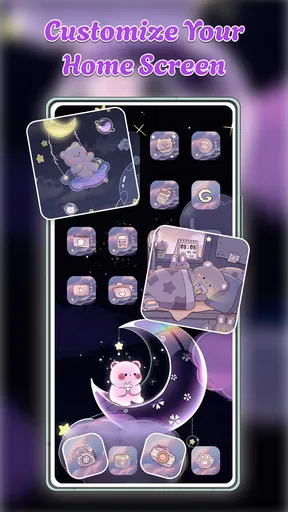
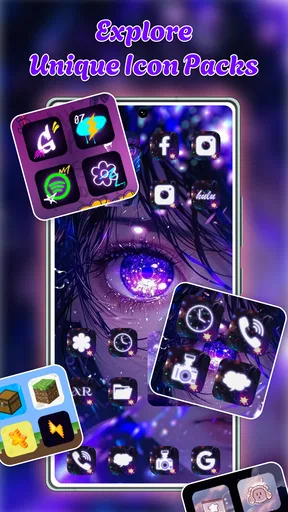
This app is a haven for anyone who loves to personalize their phone. You’ve got icons ranging from minimalist designs to vibrant, eye-catching art. The widgets? Oh, they’re a game-changer. You can add clocks, calendars, or even a music player, all styled to fit your vibe. The customization options are practically endless, making your phone truly yours.
What I really liked was the ease of applying these changes. It’s just a couple of taps, and voila! Your home screen is transformed. Plus, the app is compatible with most launchers, so no worries about compatibility issues.
Performance: Smooth Sailing
I was a bit worried about how the app would perform—sometimes these customization apps can be a bit heavy on resources. But I was pleasantly surprised. Themes Box: Icons & Widgets runs smoothly, with no noticeable lag or glitches. It didn’t bog down my phone’s performance, which is a huge plus in my book.
Discovering New Looks: Regular Updates
One thing that keeps the app fresh is the regular updates. The developers seem to have their finger on the pulse of design trends, rolling out new themes and widgets frequently. It’s like getting a new wardrobe for your phone every few weeks. Keeps things exciting, you know?
Community Vibes: Sharing and Inspiration
Another cool feature is the community aspect. You can share your creations and get inspired by what others have done. It’s a great way to see how different styles can be applied and maybe pick up a few tips and tricks along the way. It’s like having a bunch of design-savvy friends in your pocket.
Final Thoughts: Is It Worth the Download?
If you’re someone who loves to tweak and tinker with your phone’s appearance, Themes Box: Icons & Widgets is definitely worth checking out. It’s user-friendly, packed with options, and keeps your phone looking fresh and personalized. I found myself actually looking forward to changing up my home screen, which is something I never thought I’d say.
So, give it a whirl! You might just find yourself spending a bit more time admiring your home screen than you’d care to admit.
A daily routine that benefits from small changes
One realistic way to use a personalization app is to make a home screen easier to read during a busy morning. I’d keep the shortcuts I need close by, choose a calmer background, and use a consistent icon style so the important apps are easier to spot. The point is not to decorate every available space; leaving room around the elements I use most can make the phone feel tidier without changing my habits.
The same approach works for a phone shared casually with family or used in different settings. A more playful look can make a personal device feel less generic, while a restrained set of icons may be better if I often check the screen outdoors or at a glance. I would save a more elaborate design for a quiet moment rather than trying to customize everything while getting ready to leave.
Who will enjoy the choice, and who may not
The app is a natural fit for people who enjoy changing their phone’s appearance and are comfortable trying a few combinations to find a coherent result. It is also useful for anyone who wants to coordinate visual elements rather than hunt through unrelated sources for every part of a look. At the same time, people who rarely notice their wallpaper or icons may not get much value from spending time on a redesign.
If you need every shortcut to stay precisely where it is, or prefer not to adjust launcher settings, a simple wallpaper change through Android’s built-in controls may be the less troublesome option. I would also be cautious about expecting one theme to override every interface on the phone. This is a personalization choice, not a replacement for system settings, and the distinction matters if you want a complete visual overhaul.
Cost, compatibility and the decision to keep it
The app is free to install, with optional in-app purchases priced from $3.99 to $9.99 per item. I would explore the free experience first and decide whether the available designs suit my taste before paying for anything. That is a sensible way to avoid buying a style that looks appealing in a preview but does not work with the wallpaper, display or launcher I actually use.
The age rating is Everyone, and the app requires Android 8.0 or later. Its current version is 1.1.3. The average rating is 4.3 from around 3,500 ratings, with over a million installs, which suggests that plenty of people have tried it; those figures do not tell me whether a particular launcher will handle a specific choice exactly as I expect. I would check my own setup and start with one change rather than treating popularity as a compatibility guarantee.
For someone who enjoys a bit of visual tinkering, Themes Box is worth trying as a way to explore coordinated home-screen styles. Its strongest case is variety and the pleasure of making a familiar phone feel more personal; its main trade-off is that launchers and system behavior can make the process less seamless than a built-in theme setting. I’d keep the design practical, test changes in small steps and choose another option if convenience matters more to me than having more ways to customize.
Pros
- User-friendly interface for easy customization.
- Wide variety of icon styles and themes.
- Widgets offer functional and aesthetic enhancement.
- Regular updates with new content.
- Compatible with most Android and iOS devices.
Cons
- Some features require in-app purchases.
- Occasional bugs with widget loading.
- Limited free content compared to premium.
- Customization options can be overwhelming.
- May impact device performance slightly.
FAQs for Themes Box: Icons & Widgets
What features does Themes Box: Icons & Widgets offer?
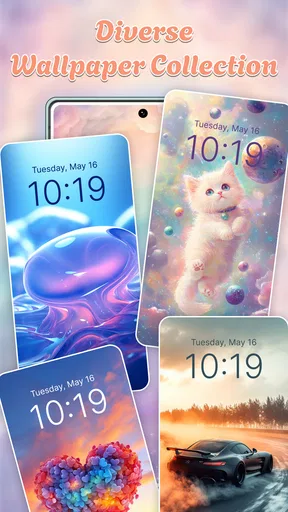
Themes Box: Icons & Widgets provides a wide range of customization tools for your smartphone's home screen. It includes a variety of icon packs, stylish widgets, and dynamic wallpapers. Users can mix and match these elements to create a personalized and cohesive look that suits their aesthetic preferences.
Is Themes Box: Icons & Widgets compatible with all Android and iOS devices?
Themes Box: Icons & Widgets is compatible with most modern Android and iOS devices. However, it's always best to check the specific compatibility requirements on the app's download page to ensure your device can fully support all features, particularly if you are using an older model.
Does Themes Box: Icons & Widgets affect device performance?
While Themes Box: Icons & Widgets is designed to be lightweight and efficient, using many widgets and high-resolution wallpapers may impact performance on older or less powerful devices. Users are advised to monitor their device's performance and adjust settings as necessary to maintain optimal function.
Are there in-app purchases or subscriptions in Themes Box: Icons & Widgets?
Yes, Themes Box: Icons & Widgets offers in-app purchases and subscription options. These can unlock premium icon packs, exclusive widgets, and additional customization features. While the app provides a free version, premium content can enhance the user experience significantly.
How user-friendly is Themes Box: Icons & Widgets for beginners?
Themes Box: Icons & Widgets is designed with an intuitive interface that caters to both beginners and advanced users. The app provides tutorials and tips for newcomers, making it easy to navigate and utilize its features effectively. Users can quickly learn how to customize their home screen without prior experience.


